IP-Clos Fabric Mist NAC Lab
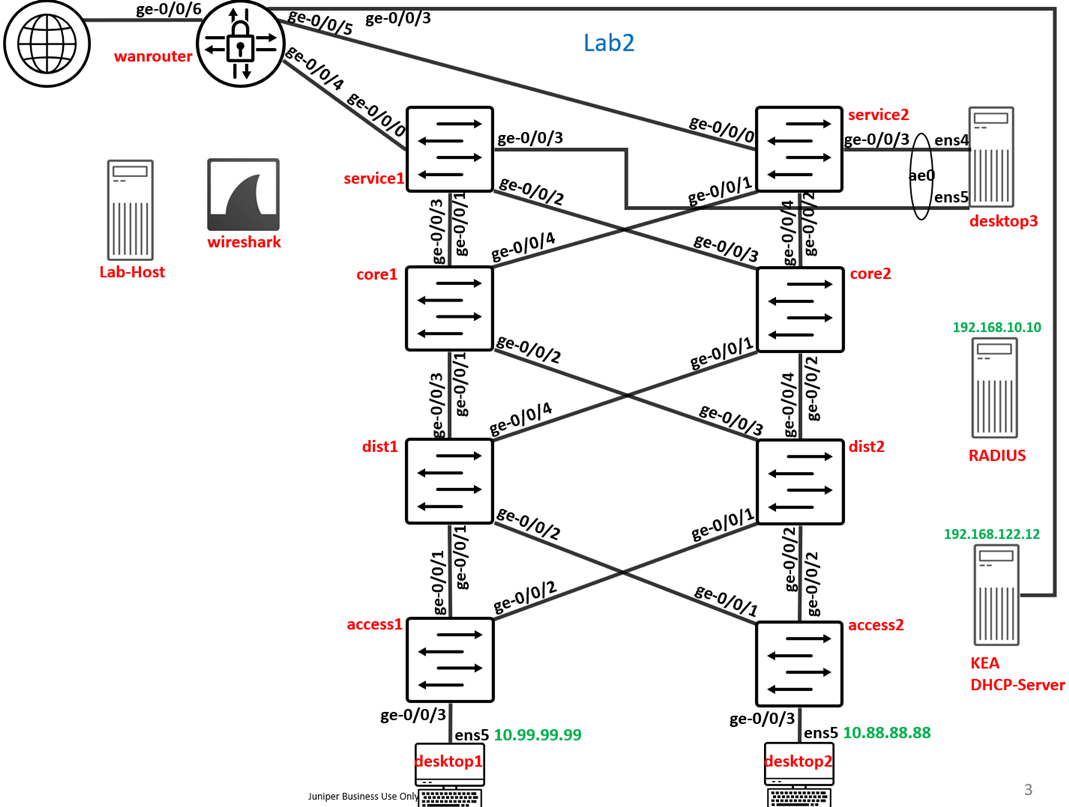
In this Lab we will use the right side of the Lab Topology with a preconfigured IP-Clos Fabric.
Note
Ignore the local Lab RADIUS Server found in this Topology. It is NOT USED in this exercise.
Lab preparation
Changes and information gathering on desktop 1 + 2 VM
Use Apache Guacamole to login to the two desktop 1+2 VM’s of Lab2
cd /root
unzip examplePKI.zip

ls -l /root/examplePKI

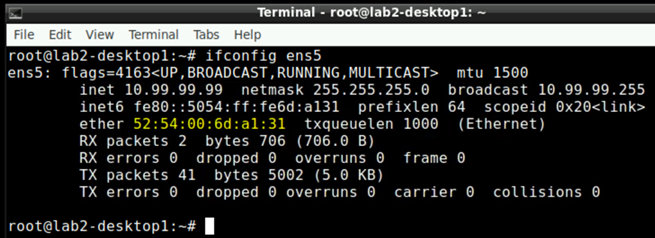
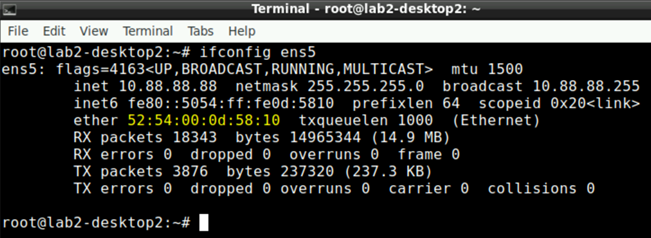
# get MAC-Address from ens5 interface (attached to access-switch)
ifconfig ens5
Note down the MAC-Address of each of the two wired client VM’s as you need that later!
Example of desktop1 VM
Example of desktop2 VM
Change the Switch Template
Go to your Switch Template for Topology2:
Check that the Authentication Server=Mist Auth

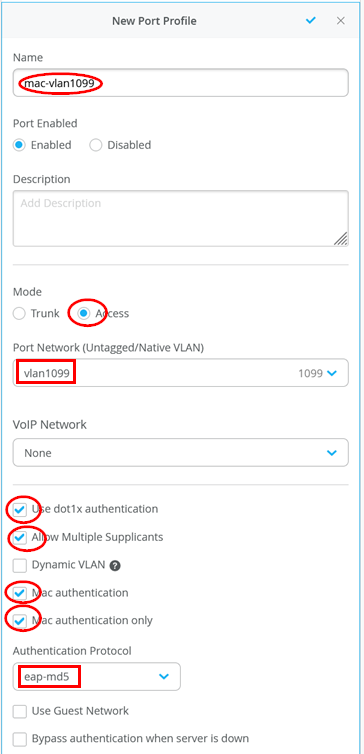
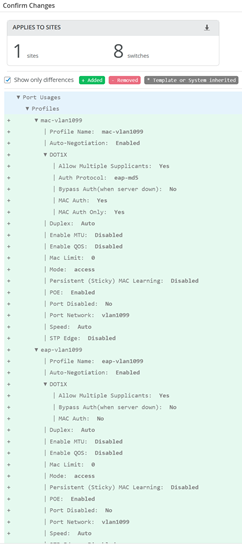
Create a first new port-Profile in the Switch Template for MAC-Authentication Clients
Name=mac-vlan1099
Mode=Access
Native Port Network=vlan1099
Use dot1x authentication=Enabled
Allow Multiple Supplicants=Enabled
Mac Authentication=Enabled
Mac Authentication only=Enabled
Authentication Protocol=eap-md5
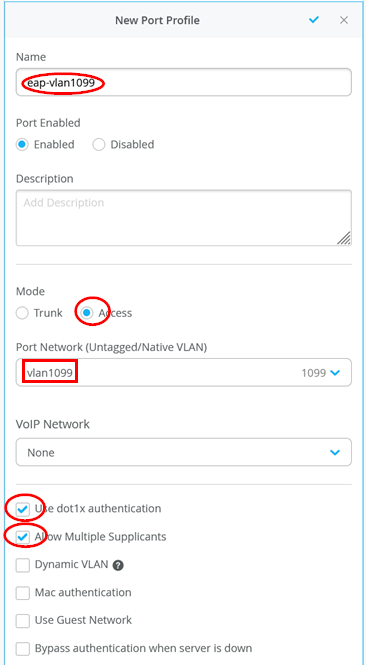
Create a second new port-Profile in the Switch Template for 802.1X EAP-Authentication Clients
Name=eap-vlan1099
Mode=Access
Native Port Network=vlan1099
Use dot1x authentication=Enabled
Allow Multiple Supplicants=Enabled
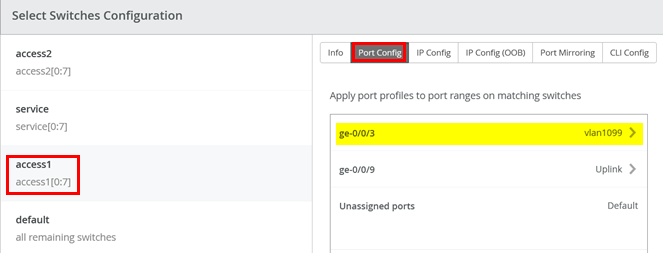
In Switch configuration for access1 delete the default ge-0/0/3 to vlan1099 mapping.
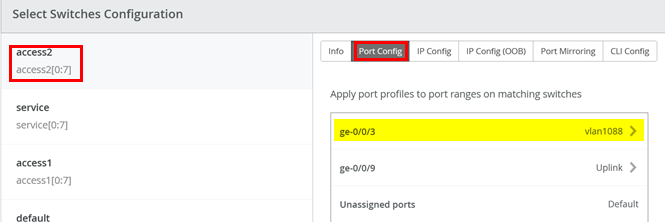
In Switch configuration for access2 delete the default ge-0/0/3 to vlan1088 mapping.
Save the Template
Wired Client MAC authentication
Assign MAC-Port profile to Access 1 and 2 Switch
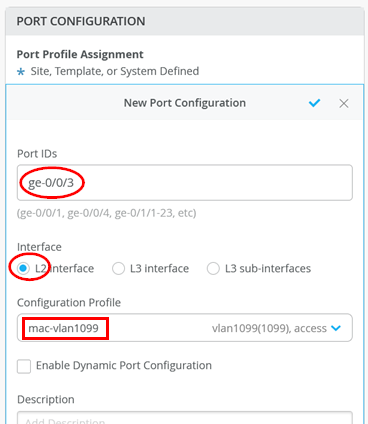
Go to each of the two Access1+2 Switches and configure:
Port ID=ge-0/0/3
Interface=L2 Interface
Configuration Profile=mac-vlan1099
Note
You will notice that even when we authenticate desktop2 VM with this configuration it will land in the wrong VLAN as it should be in 1088 and not in 1099. Stay tuned we’ll solve this.
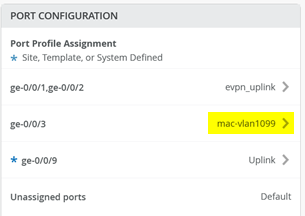
Your result on each Access Switch should look like this.
OPTIONAL: Review Junos changes on Access Switch
The changes the above made should trigger a Junos config downloaded to the Access Switch similar like the below.
.
set interfaces interface-range mac-vlan1099 apply-groups mac-vlan1099
set interfaces interface-range mac-vlan1099 member ge-0/0/3
.
set groups top access profile dot1x accounting-order radius
set groups top access profile dot1x authentication-order radius
set groups top access profile dot1x accounting order radius
set groups top access profile dot1x accounting update-interval 600
set groups top access profile dot1x radius authentication-server [ 3.33.153.159 15.197.139.214 ]
set groups top access profile dot1x radius accounting-server [ 3.33.153.159 15.197.139.214 ]
set groups top access profile dot1x radius options nas-identifier 7aa90d1d-b5b0-4620-9baa-1cc39df0b62b2c6bf5536e00
set groups top access radius-server 3.33.153.159 secret $9$jqkfz3nC0OR690IcSMW
set groups top access radius-server 3.33.153.159 timeout 5
set groups top access radius-server 3.33.153.159 radsec-destination 895
set groups top access radsec destination 895 address 3.33.153.159
set groups top access radsec destination 895 port 2083
set groups top access radsec destination 895 tls-certificate mist-nac-device-cert
set groups top access radsec destination 895 tls-force-ciphers low
set groups top access radsec destination 895 tls-min-version v1.2
set groups top access radsec destination 895 tls-peer-name aws-production.e5b2db7f-a7fa-4768-b4ca-caeedc944a8b
set groups top access radsec destination 895 tls-timeout 30
set groups top access radsec destination 896 address 15.197.139.214
set groups top access radsec destination 896 port 2083
set groups top access radsec destination 896 tls-certificate mist-nac-device-cert
set groups top access radsec destination 896 tls-force-ciphers low
set groups top access radsec destination 896 tls-min-version v1.2
set groups top access radsec destination 896 tls-peer-name aws-production.e5b2db7f-a7fa-4768-b4ca-caeedc944a8b
set groups top access radsec destination 896 tls-timeout 30
set groups top access radius-server 15.197.139.214 secret $9$jqkfz3nC0OR690IcSMW
set groups top access radius-server 15.197.139.214 timeout 5
set groups top access radius-server 15.197.139.214 radsec-destination 896
.
You should also now see a root-ca and a local certificate for the device pushed. This is needed for the RadSec-Tunnel towards Mist NAC to work. Mist cloud manages an own PKI for each organization.

Authenticate desktop1 VM via MAB
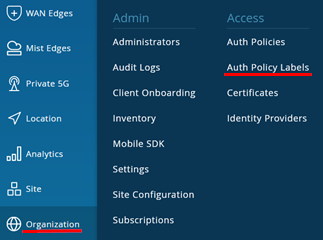
Go to Organization -> Auth Policy Labels
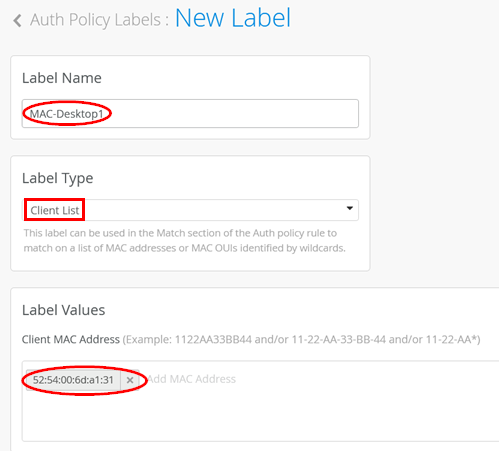
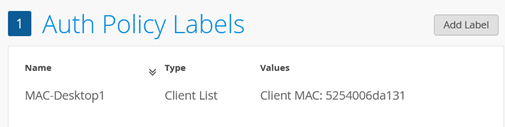
Create a new Label:
Label Name=MAC-Desktop1
Label Type=Client List
Label Values=<MAC-Address obtained in chapter 4.1.1>
.
Then go to Organization -> Auth Policies and create the following Rule:
Rule Name=MAB1
Match Criteria=MAC-Desktop1 + Wired
Policy=Pass
Assigned Policies=Network Access Allowed

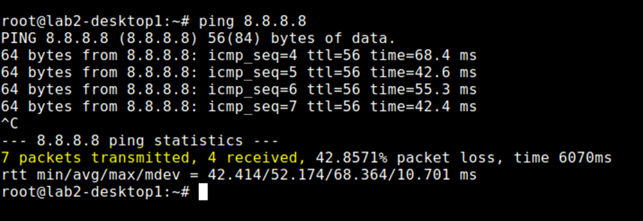
Go via Apache Guacamole to desktop 1 VM and try to ping 8.8.8.8
You may lose a few Pings but authentication should succeed.
Use a Remote Shell session to Access1 Switch to check authentication details like below.

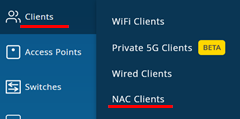
Go to Clients -> NAC Clients
Review the status of your two Switches similar to below

Warning
Information update about Wired Clients in Mist Cloud can take up to 3-5 Minutes! Hence you might skip the below step.
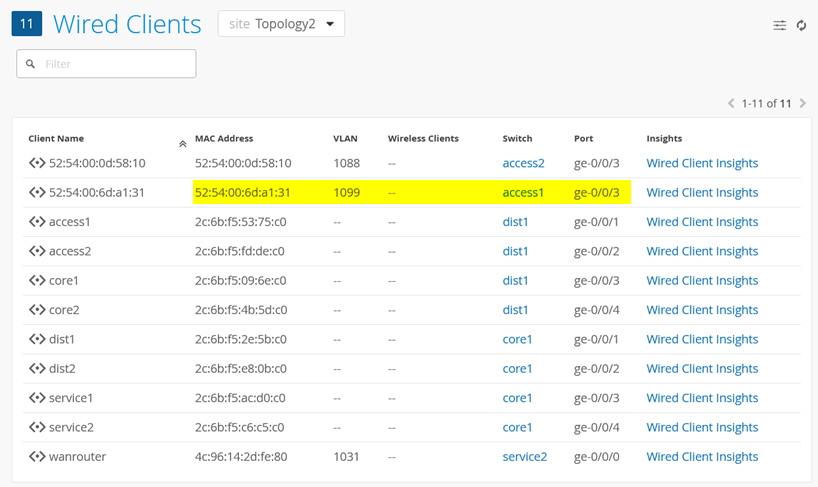
Review Clients -> Wired Clients until you see your client appearing:
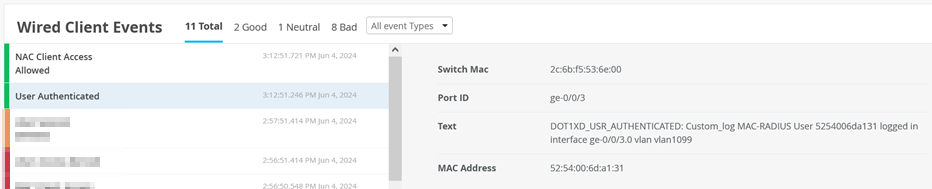
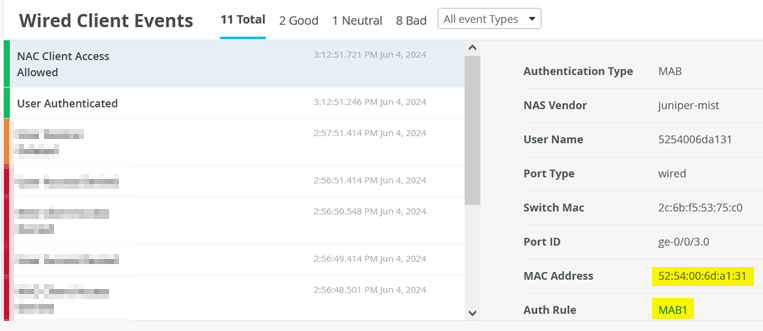
Review via Insights the Events for this Client
.
.

Authenticate desktop2 VM via MAB + dynamic VLAN assign
Go to Organization -> Auth Policy Labels
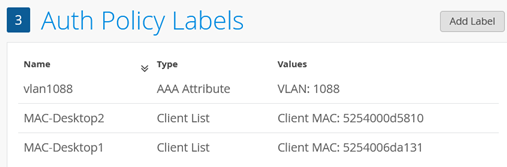
Create a new Label for Desktop 2 VM:
Label Name=MAC-Desktop2
Label Type=Client List
Label Values=<MAC-Address obtained in chapter 4.1.1>
Create another new Label:
Label Name=vlan1088
Label Type=AAA Attribute
Label Values=VLAN
VLAN Values=1088
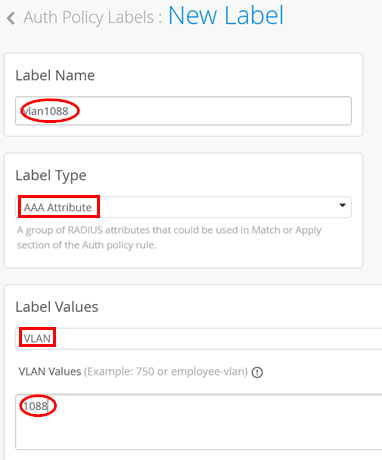
Your changes should look like below.
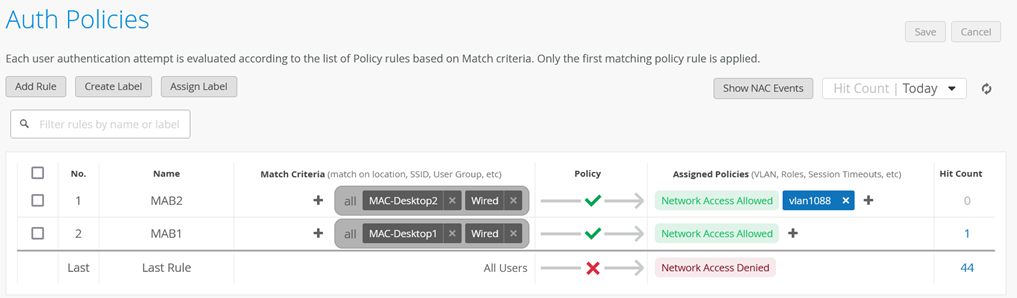
Then go to Organization -> Auth Policies and create the following Rule:
Rule Name=MAB2
Match Criteria=MAC-Desktop2 + Wired
Policy=Pass
Assigned Policies=Network Access Allowed + vlan1088
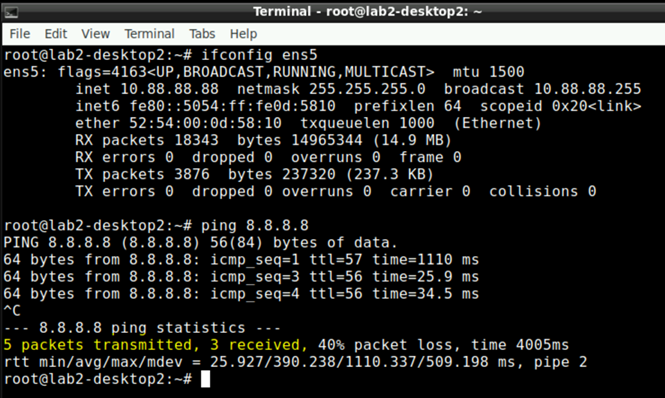
Go via Apache Guacamole to desktop 2 VM and try to ping 8.8.8.8
You may lose a few Pings but authentication should succeed.
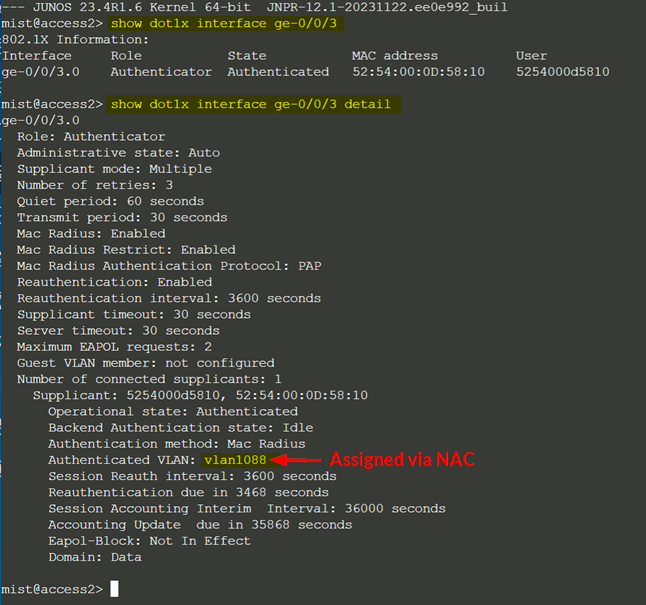
Use a Remote Shell session to Access2 Switch to check authentication details like below. The huge difference is that via RADIUS we assigned the correct VLAN for this Client!
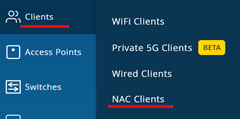
Go to Clients -> NAC Clients
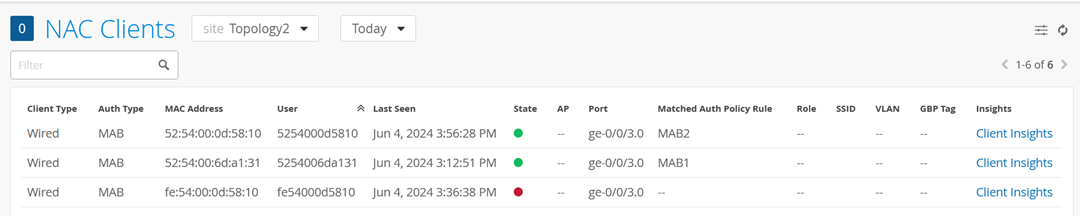
Review the status of your two Switches similar to below
Warning
Information update about Wired Clients in Mist Cloud can take up to 3-5 Minutes! Hence you might skip the below step.
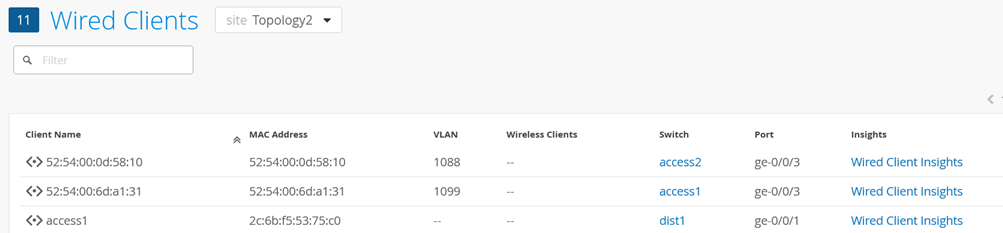
Review Clients -> Wired Clients until you see your client appearing:
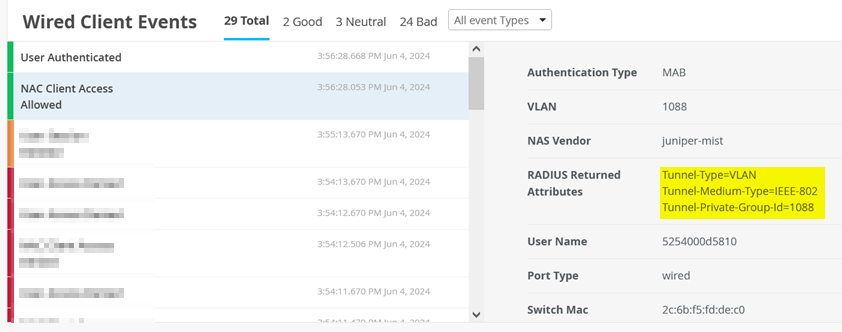
Review via Insights the Events for this Client
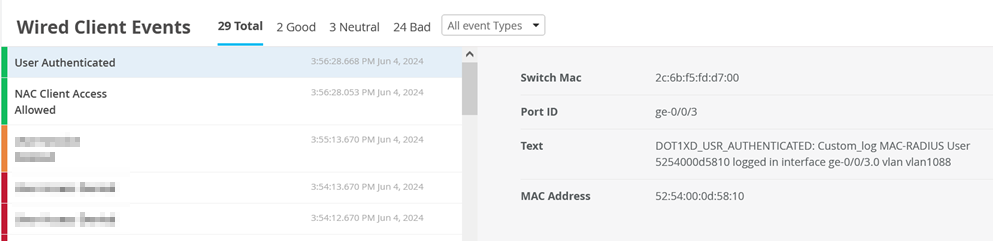
The important thing are the returned RADIUS attributes to know (which Mist NAC abstracted)
Wired Client TLS authentication
Assign eap-Port profile to Access 1
Go to Access1 Switch and change the exiting configuration for Port ge-0/0/3 to the Profile for eap-Authentication:
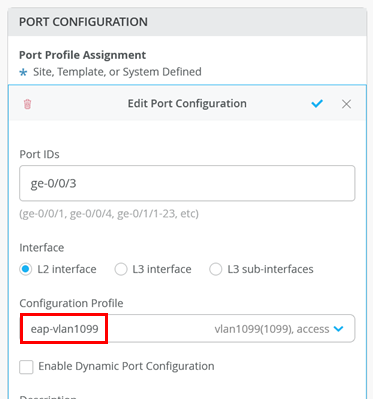
Note
No need to change access2 Switch. It can stay on MAC-Auth for now.
Configure Root-CA and Server Cert on Mist Cloud
On the Lab-Host is the examplePKI stored review the output of the following files on the Lab-host:
cat examplePKI/cacert.pem
-----BEGIN CERTIFICATE-----
MIIGYTCCBEmgAwIBAgIUPTLfvL3W6+VDe+8cqKlOX3ogF+QwDQYJKoZIhvcNAQEL
BQAwgZ4xCzAJBgNVBAYTAk5MMRQwEgYDVQQIDAtOZXRoZXJsYW5kczESMBAGA1UE
BwwJQW1zdGVyZGFtMRAwDgYDVQQKDAdKdW5pcGVyMRIwEAYDVQQLDAlDQS1DZW50
ZXIxFzAVBgNVBAMMDmNhLmV4YW1wbGUubmV0MSYwJAYJKoZIhvcNAQkBFhd0cnVz
dGNlbnRlckBleGFtcGxlLm5ldDAeFw0yMzA2MTIwOTU4NTZaFw0zMzA2MTMwOTU4
NTZaMIGeMQswCQYDVQQGEwJOTDEUMBIGA1UECAwLTmV0aGVybGFuZHMxEjAQBgNV
BAcMCUFtc3RlcmRhbTEQMA4GA1UECgwHSnVuaXBlcjESMBAGA1UECwwJQ0EtQ2Vu
dGVyMRcwFQYDVQQDDA5jYS5leGFtcGxlLm5ldDEmMCQGCSqGSIb3DQEJARYXdHJ1
c3RjZW50ZXJAZXhhbXBsZS5uZXQwggIiMA0GCSqGSIb3DQEBAQUAA4ICDwAwggIK
AoICAQC9ug03yl97eR4EHK8Rs6zCuiC81AC6MTCtNr1LkhI8CiL9/CYzelGY39sJ
6VElyLB8DWcYLgpb7rolXKQB/YHnMmr2DH/gvepwfzq4fVszZvbGDjlkw1hh9l8p
1H1VF7Td3w0B5HcKx3P9KoEywk00vLu0fpIIU0a8am6emEBsLhiYPtGy6NBTICuF
wsLrCMzxLvPqNw4OBHTmBH0fU2VVgj/1ZVGUkdCpZhnHcsFd5AcYW3p1mhPEYVmE
HKBmwXTw0KfjAYLxPXknlrpyICFoNkSiI6M7YhIh2q6TVAngPXclHNzC/ptOfQJO
pHZnMXvz/4crROvOjpj+dJmzQD/KOOI1H2JypnEAt+oAJvcwy4V49DdWO53OVbSl
PIMPUv6evXZpwyNQImets8j8JlUmmgVV12zH7bSVviLhiC3gxamrEzpBHGfjXO1Y
ajyOXGHyaaL0M6vWubmuJW0ZSo8ebVosLB3GZJNM1S+IPKcOhB6gh4agZgUU1oP7
npzNPGLVH0lg1zO0bzzvqucbeh+fqFhFizHbKkcPg2xpOCfro1DA5Fvb/tb7yQUN
s0ZqvftiosfsxRbV9v0KgUWl/rc2q4SYUvDQZZUryZdnuVriELGXeg1vumgIvXwd
0sXCaHIMa6Sgtl5WCHqDhTM1mzBmLh6TTF0KjKGW//lIEBEhiQIDAQABo4GUMIGR
MB0GA1UdDgQWBBQWxqook6jt8a2/AY9+84mDc0PgJDAfBgNVHSMEGDAWgBQWxqoo
k6jt8a2/AY9+84mDc0PgJDAPBgNVHRMBAf8EBTADAQH/MA4GA1UdDwEB/wQEAwIB
hjAuBgNVHR8EJzAlMCOgIaAfhh1odHRwOi8vY2EuZXhhbXBsZS5uZXQvY3JsLnBl
bTANBgkqhkiG9w0BAQsFAAOCAgEAWfxPysUjxOlw1Xy1YZCfem8SU170m8Q12dFG
0vPJj9UCWB6tUXFx1R5Tc2ZgMimq/dX7DQjbuLN7/miSy43JzceeNJYKXpeqft69
GjqbUvW3ezLtHtD0PsvUewNO6ugPU5K8AZ0aTo8yB+2yWLcS+QH52M+TxSw4aEqn
Gf7fbDrG5+tScY+roWOqz27aJsQBvlJdx1uI/TA3zJWd55UvJLKXp/mly5/Gup0n
5FEgCM3RpWyZm/VS/YLC1DLdS2+KqRAZdqdslktKh14ZjlQnD7Ut0MLXuuZPRQBQ
P7UmLUP9GRxGJxhAUSRXzxCD0SKMMbw86tejJaPMsVlNytMt9wZ/laQEV6uEHfcF
n/qDYRjiGuscEvPCpdmX+xAhOQpBJ00m+x2p1Bpnhccoo5tmjck8HZ5269C64E7H
0oQ42NayRMbMq8Pk5pTSwqkY5tJJUWfgumrizdcqQGSK0D7o3dLzqGNnbEd53Ur+
fErQ+YHvYQfYF+SUiS4n6iRQV77Ga/Wl8EvfOPSFOHXvVqefcDw5E0VFBBcGczTf
OuwjEyK/n7WurUol0+Jl0Fo7OM52DS1vvmkjcji6tevZwIYmWjKvjGtBKwANhK6F
KCgFIq97MpzgOXqxZH0FQ8/4SClWR0ye45tqyivQm2QLtGos8yv4ev8Wjd/sGmkq
PCPM71k=
-----END CERTIFICATE-----
cat examplePKI/radius.example.key
-----BEGIN RSA PRIVATE KEY-----
MIIJKQIBAAKCAgEA5skuVZrU7tKVUoI+/zq/B0xrIVILqc7yXp/Z115sadTkcDn7
CdyIrB5NH7RkJgxvzky7bM7mcqUyNSkgVhNKe4Ha1urE/wKDC0HQwx/4NL6yVHQx
L93SmfYmXstLvqL7J235isFXzhy2lvcDVvyRPGxI+uxAyIj285+c0+WTd/lfyyFO
Jwql0ou34xyEKexBYNluEvfNb246UU8DrrgS9TIoy6OHuMMRlbisqgwrN0EoSmcd
0zgFgyrIHaD89k25MmcklD/qc3bE+aUxpoYDR196K3YUR58Iu1eQ7Y23VuzcE6u9
aHg/WTGCkJhgQOpqd1JqAuNjej02dw1YiyfvYqzigzuqZwMzR0zL9NMhbtB/U2M7
4ckpPHdvpjLwlbQ2nFrSd8yQVW7lcKesyH9BYOPA6GoOVC6+wepwgTC5ytz46oUA
JBkCZaXq5kE2oCx35pes1UQycbNjcf3rxDM7KUDs/0ywPspkpDvHRSWohyMDPw/w
6FQ8Kz9bVhA3spe9R+IOAg7GKJSBHKoYUeLGh+i0wqx/xAPp4xU70KTXplL/tey0
pdqQWpJsv7D+1N3nBSG6jfzYlMDd1wTvhUDepVckfhLZt+95xVbfb9jZDeeWHijg
0uNAi4/Tgn0+Tr/C1Kyk8e1ZR0m37KsVpbYxM5/gU3CrVMyAFKDGjZqBd+sCAwEA
AQKCAgEAzwe0qBiwYdnJGG484yspCPwVsptuWROLuzT878YFzV6s2rw4pl0OwhCg
sQtbOAK6HcAZ9n8Yncnx41yUZIMDsw4HafrLY9Q2CFgvVYuNVounYDmnkkAU2AbH
3wvSVB7S3Uk7razJ/t0lMwI+Hb+O7jxZr7dWWk778grCXhg5lUvBEnE7MazMmra5
7GO9b/o/oAkNRLjFsuuYJy6RqB/66bjofd2iOC3NzZkQU6986SFramtchwlfcI5l
XKb5pl6M/1klqFQ6FwB5rVXy12aq9FEDQI+5m5Jf++eO3Hvf93ud5YuP63LLqVDP
xrTazAE+JvJopVSk/ZiCDoSLZLIbfJ5DHZHr+A2Nxsxr1EZXrz3hhw2M+FM5KDa3
iactyq5lYqyRxYb/AL7PMoCd+wfFcmmTUoCyXgSxumcrZ0HA3EReEEw38Bm4ipaA
1m3PkOEw6vT0olTT5DumCOlP95D/mXad2yY3TuZGpPy0nDrCOW8pwgT1dNPvJrcp
6BABZBjUDawKW3prf3KMRBdAcLphZOLaZPpol1QmHXwnWBJwgbPopKWHOh3yxKrE
ryTpkcLm/b+ej6EznyT+RGzXaYnP1uCvTea9uU8mPhQbi+6kx6KMS2v5eowNdgGB
xmMVeew+UYj0ROMegwdmYBkHHcd2SdpGBA8AkM4kQNoyTRhRdikCggEBAPoBJuyT
qKfVdd/9bZ6iuNnWAywAnrwnS2k4E6wY6iKX+E6LuTpvbAzxnypp2gGszdEpT8ur
SuLNcU6gDAQa2AXkLEHigdJh6QVNiwkXYKicNv70pnEz3sVJVcRNGyUkd58u7w7J
KBHLmmgjFuSrUxAhxUiZhSB6VB9xQxGENbQB6RIu5VeCc3iiP+JlpfN5Ql3TXX+l
+cfPAE0lZ3NMpHcnOrBRSCvR8AY2J8bv6B9IE793XuQzBTtr9Ln0E6w6LfM/9QYu
47O0Ub/RtXZc2ua34Z2Fu//n91X98/Od9tph/lWrKnsPVyo+/jXnlGIdObd5XHyQ
HTJKSBbMxtBVwPUCggEBAOxSClLwrW3VkktA2IKDWH9/6XONkclP1fIO5oz1Xiw6
HVlRI1HcCyAxQNhrO7H+B1yBSuR2gZCseKS93exaim77rSTNvxy9Ms11eGHZsk18
TDC5lFUHdgXuuHJYXQOf0QfO8TCxm39ccPjwR1IRxvNaoKouorJKwevzU4prRh5u
21xYOBR3Yb06jyJl333i6x4nbYp2s8RlZDGEaBjfbPDI0ysF+ESF28TIwPygcjfd
t7LGKvcIsQsNwKVasvTs67PvRVEEBkZfM0hai0PL6gbExaVlRsVsJ/rV6PLj8O7S
agx9c+WPswWzhJL+X+xIHm4eMT3XVTNYgO5xvB5lSV8CggEAGX9clOxKWzOuHfYe
4/r8l1r4X9iAV/g5/LU3bGnuFzEgpgIiFg+fGYLbFNxO27TgGOD5vm/t50vErpws
HY8PUSqASQfs7aQGu/+4mmjD9u5XvZD+GLWNltlv4eFrT1J00MtcnkltyMLXMJ/D
ifbfNdn74PenWDSht8M5b+PoBj/boXse8NnhJQCHO3PahQZs+lzAQHCRFQvLoBKc
hmnerDhYB/uCPNXggQGs9OEq72XOfcyS5Ps/IVxVTVHTX9FfNlvjhYnqtz1AySt+
MmAuAzHl1Mb68ZKa6y5HXyVRM9yir+IRJxPdc/WQv7aqr4cDh+7cu+eG0sY4q/qe
nEjisQKCAQEAoiWcbdIzvQPoT/gbVlmW1EzIun9tg0pjCqYMrLUCu6fYUVtpt5Ya
kCkbTCMvn24kUOVppJ5nQgQE90xLRAvPplzLLVB6i9aJUA4E3mbHf4EEqf37d+gZ
o/Jq3hIhKAZ1Hz1vojCK9/VOkpAS743BC2KokHxVJ65BpoqbTINUZjc8Df195RUQ
nAzc/wYVNcQH/PWipHnT2LKU76Dg6AgNMJ0qvv9mnGWYKEpymCPimtBnZaOxATUW
fPYfs5Uq6wDQrPJEhlUTlR9nCYMOwSLd3W0QC+8Ugws111cEcfvSaZs4Jn/BkMZr
WEMXeOBOosnND1NqB/uCuytDs9eX8uceUwKCAQBOV/lX6L1hMiqsgJsqCmFKl0m8
tDMGGdPJQBeTqQ8YLeub7ORahL9vstAZNb5liYM3eytPrv5utXX4pORgUNDYylpW
9bd4CQsbV3cNo5IAft5XcYo3t4q/3XOEVPH9azpx+Dj4F9quEcX5972kUU1+y04K
D9HmWCXYolxBQ7YsRu6RokfXxNE45O5S/w8Z8IVDg362PU4eOancH70PHrl8UhtM
GiGiIZVVeasqcZ6zd2EOweQUE1MukyaudvLdSU8tcULIDZ1Mm+AfNtJGafsxuDSt
hgDMpaBJIpHtk+I2o086+FEYhSfkV8CF0X6MBXtYsGffUdauaO66vVQ3iP5S
-----END RSA PRIVATE KEY-----
cat examplePKI/radius.example.pem
-----BEGIN CERTIFICATE-----
MIIGITCCBAmgAwIBAgIBIzANBgkqhkiG9w0BAQsFADCBnjELMAkGA1UEBhMCTkwx
FDASBgNVBAgMC05ldGhlcmxhbmRzMRIwEAYDVQQHDAlBbXN0ZXJkYW0xEDAOBgNV
BAoMB0p1bmlwZXIxEjAQBgNVBAsMCUNBLUNlbnRlcjEXMBUGA1UEAwwOY2EuZXhh
bXBsZS5uZXQxJjAkBgkqhkiG9w0BCQEWF3RydXN0Y2VudGVyQGV4YW1wbGUubmV0
MB4XDTIzMDYxMjEwMDIzM1oXDTI1MDkwOTEwMDIzM1owdDELMAkGA1UEBhMCVVMx
EzARBgNVBAgMCkNhbGlmb3JuaWExGzAZBgNVBAoMEkV4YW1wbGUgVEVTVC1Db3Jw
LjEWMBQGA1UECwwNSVQtRGVwYXJ0bWVudDEbMBkGA1UEAwwScmFkaXVzLmV4YW1w
bGUubmV0MIICIjANBgkqhkiG9w0BAQEFAAOCAg8AMIICCgKCAgEA5skuVZrU7tKV
UoI+/zq/B0xrIVILqc7yXp/Z115sadTkcDn7CdyIrB5NH7RkJgxvzky7bM7mcqUy
NSkgVhNKe4Ha1urE/wKDC0HQwx/4NL6yVHQxL93SmfYmXstLvqL7J235isFXzhy2
lvcDVvyRPGxI+uxAyIj285+c0+WTd/lfyyFOJwql0ou34xyEKexBYNluEvfNb246
UU8DrrgS9TIoy6OHuMMRlbisqgwrN0EoSmcd0zgFgyrIHaD89k25MmcklD/qc3bE
+aUxpoYDR196K3YUR58Iu1eQ7Y23VuzcE6u9aHg/WTGCkJhgQOpqd1JqAuNjej02
dw1YiyfvYqzigzuqZwMzR0zL9NMhbtB/U2M74ckpPHdvpjLwlbQ2nFrSd8yQVW7l
cKesyH9BYOPA6GoOVC6+wepwgTC5ytz46oUAJBkCZaXq5kE2oCx35pes1UQycbNj
cf3rxDM7KUDs/0ywPspkpDvHRSWohyMDPw/w6FQ8Kz9bVhA3spe9R+IOAg7GKJSB
HKoYUeLGh+i0wqx/xAPp4xU70KTXplL/tey0pdqQWpJsv7D+1N3nBSG6jfzYlMDd
1wTvhUDepVckfhLZt+95xVbfb9jZDeeWHijg0uNAi4/Tgn0+Tr/C1Kyk8e1ZR0m3
7KsVpbYxM5/gU3CrVMyAFKDGjZqBd+sCAwEAAaOBkjCBjzAMBgNVHRMBAf8EAjAA
MAsGA1UdDwQEAwID+DATBgNVHSUEDDAKBggrBgEFBQcDATAdBgNVHREEFjAUghJy
YWRpdXMuZXhhbXBsZS5uZXQwHQYDVR0OBBYEFCf6zE4lasCeptAbc5pX4p8sggxz
MB8GA1UdIwQYMBaAFBbGqiiTqO3xrb8Bj37ziYNzQ+AkMA0GCSqGSIb3DQEBCwUA
A4ICAQBwLQdw+C4YkZbvF019FdeMGfxmN1dR+t7n9vEd0JOHUplZar6khSARfZ03
DL2aoMyzn3Na5aDsQWwpzsa1Ya0IitvLI7jNtPlxoUflb+HZpKBOUe8DgyFpZy/X
XYIsyNX7EkCTFsXGsgPmMOtAgatsqCEEd/Fj14KBFCDwF6Ftmx3mlOGUsVn89osD
K4f2XNbcbx41+NEd9LlQNXsIZSCDZtXE+k+d4H5/mnn4aaMuVrwIZPprmB7WIZVl
iPj12HuEcAW2zyWOx4DIvF087W3yOYBZN03//5LHXAcp+T5FlhQe87ciAEzVXtr0
ZyIQlaGwN0YGoSpd3HKINpdmpQQS4UnEAXRI9oNKYViqrv6kBSqsvY8StO3hi0OL
Qb6u/WXRmxwWlTrbWkC7iwAPCQwTNYXhc1MJOU5w8PXzP0ySnO3Spo9u68KvVUPd
PrILBXDwFnOHi+hHjZlj6RnSmWuk3kpMmkoCayHyB+IE8nJJ1gFE6TLCt3z3o+ji
03mzyzH23VR7h25OivtqYS6BJZXLNOGhaleFKBAtxBp9Ae0WHked1l4AMS/OU2q6
jwbvmawZMfkqCdUnLoSICTCLSSWAv9AnGhwQA6uy5/Dt37N8pT0vDd5yuczCt14r
THQnsPBmB4zcPMFsKjYkVtRc4TLY/YXaMsMsXpM8IxU0prLIGQ==
-----END CERTIFICATE-----
In this solution we leverage an Enterprise PKI with Root-CA, AAA-Server Certificate and most important individual Client Certificates to provide strong authentication for Wired and Wireless clients when they enter the network. It IS possible to add external IDP credential DB’s to get more granular information about a Client to apply a proper ruleset but we do NOT show/use this option here for simplicity. You can add Certificate based Policy decisions for more granular decisions. Let’s start with the minimal needed items first.
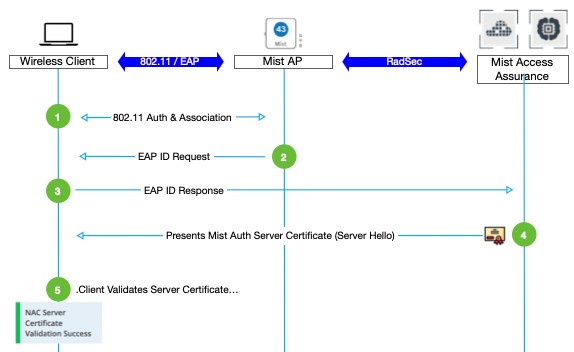
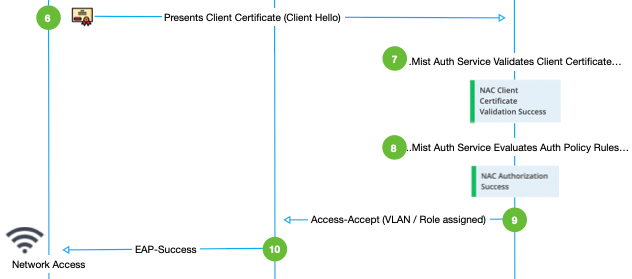
We assume here that you already have the Mist Access Point, Juniper Switch or Mist Edge configured talking to your Mist Cloud as in chapter Error! Reference source not found..
There are in general two possible solutions on how to generate and use Certificates for the RADIUS Server that the Mist Auth Cloud launches for each Organization:
New is the ability that the Mist Auth Cloud generates the Certificate for the RADIUS server and manages the renewal process. All the Enterprise needs to do then is download and deploy the autogenerated Root-CA Certificate from the Mist Organization to each device/Supplicant so that it trusts the RADIUS-Server when he sends his certificate to the Supplicant. Note: Client Certificates for EAP-TLS still must be generated by the customer EnterprisePKI as of now.
Or using the traditional way where all Certificates are managed by the customers enterprise PKI. Hence the customer must upload (and maintain) the public Certificate of his Root-CA and the public/private for the RADIUS-Server in the Mist Auth Cloud. The devices/supplicant get to know the enterprise Root-CA (and Client Certs for EAP-TLS) by the usual deployment method.
In our Lab we have chosen the second option!
Customer Enterprise PKI provides RADIUS-Server Certificate
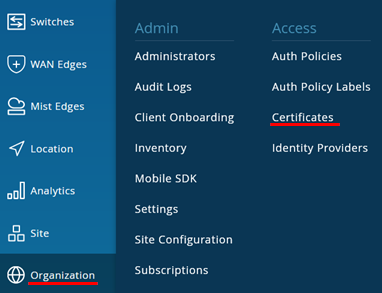
Go to Organization -> Certificates
Click on “Add Certificate Authority”

Paste the cacert.pem in the “Signed Certificate” window.
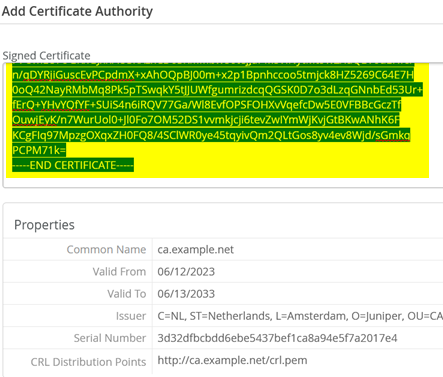
The result should look like this:

Now click on “Import Custom RADIUS Server Certificate”

Apply the following configuration:
Paste the content of the file radius.example.key into the “Private Key”-Field.
Leave the “Private Key Password”-Field empty. In Enterprise PKI’s from a Customer this may be required to be populated.
Paste the content of the file radius.example.pem into the “Signed Certificate”-Field.
Check the now populated Property Fields
The common name SHOULD be a DNS-FQDN.
Extended Key Usage=TLS Web server authentication
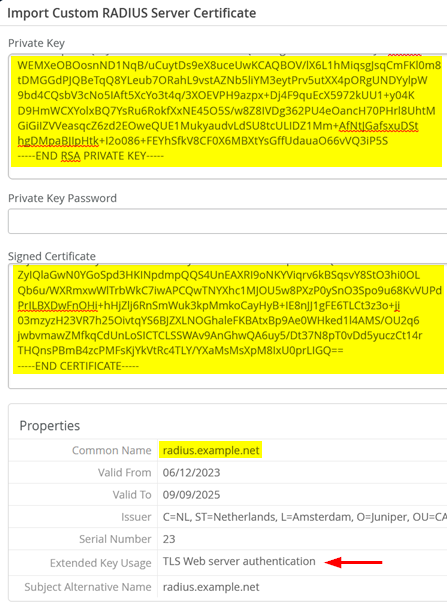
If all is well “Save” the certificate.

Change to Organization -> Auth Policies
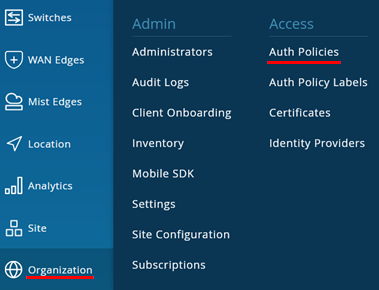
Now just create a single SIMPLE Auth Policy, at the top, where you configure:
Name=TLS1
Match Criteria=EAP-TLS + Wired
Policy=Pass
Assigned Policies=Network Access Allowed
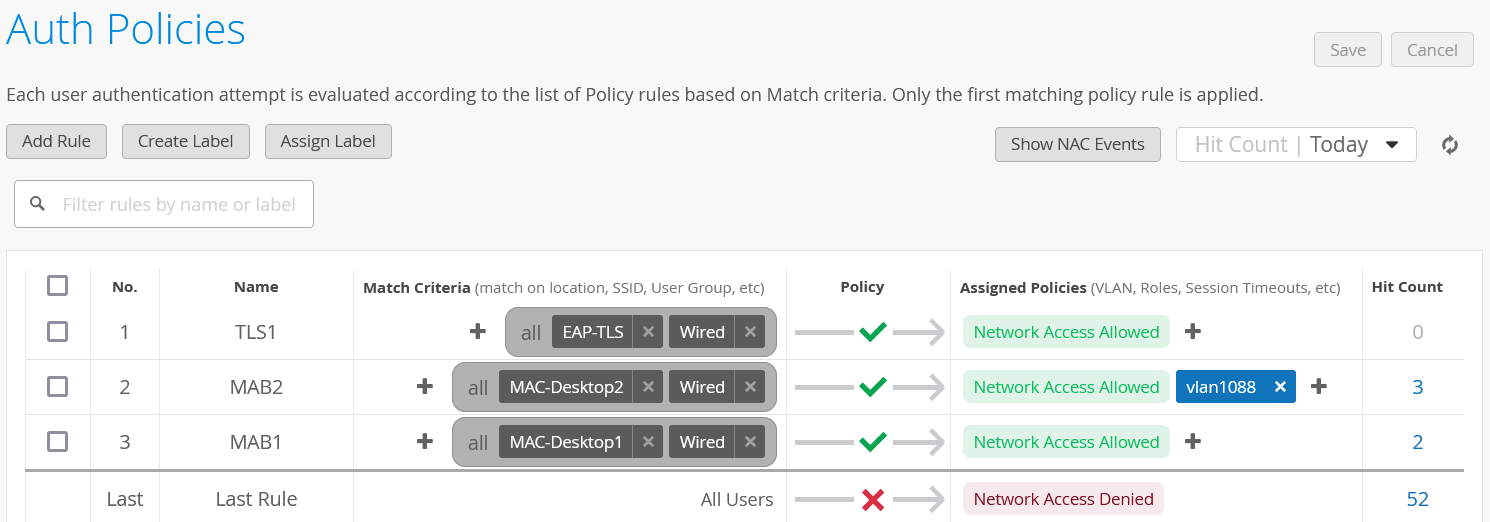
The next piece is a bit tricky. Copy the entire below information into your clip-board.
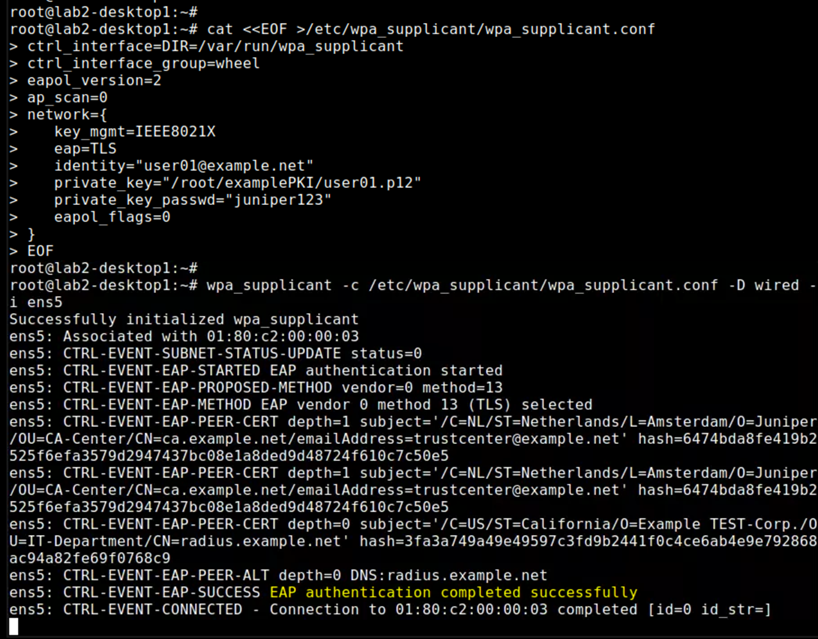
cat <<EOF >/etc/wpa_supplicant/wpa_supplicant.conf
ctrl_interface=DIR=/var/run/wpa_supplicant
ctrl_interface_group=wheel
eapol_version=2
ap_scan=0
network={
   key_mgmt=IEEE8021X
   eap=TLS
   identity="user01@example.net"
   private_key="/root/examplePKI/user01.p12"
   private_key_passwd="juniper123"
   eapol_flags=0
}
EOF

wpa_supplicant -c /etc/wpa_supplicant/wpa_supplicant.conf -D wired -i ens5
https://guacamole.apache.org/doc/gug/using-guacamole.html#copying-pasting-text
Browse via Apache Guacamole to desktop1 VM and press <Control>+<Alt>+<Shift> to open the clipboard for guacamole. Then paste the information into the guacamole clipboard.
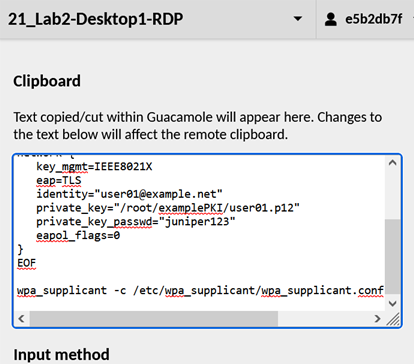
Press <Control>+<Alt>+<Shift> again to close Apache Guacamole clipboard.
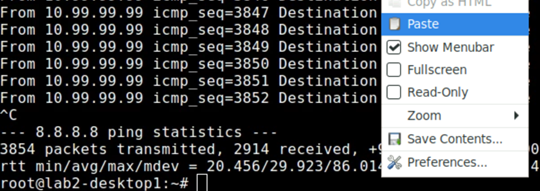
Now got to your existing terminal session and paste as this is the way to handover your information to the remote VM.
Ignore the warning as we know what we do ;-)
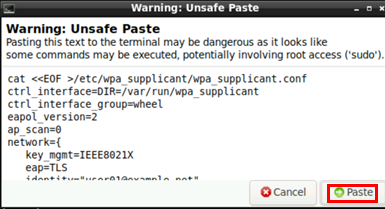
With creating the local configuration File and then doing the wired authentication we make the TLS User authentication complete!
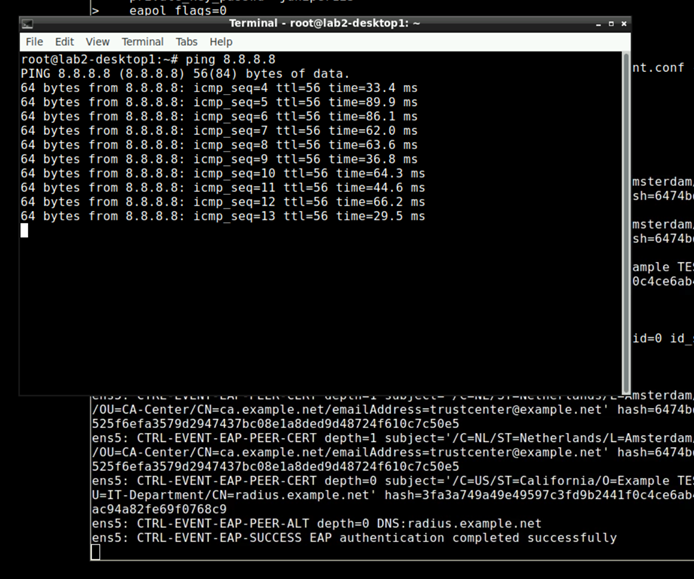
As the first terminal window has the authentication in forground so that we can see it you may need to open a second terminal window to validate you can send traffic now.
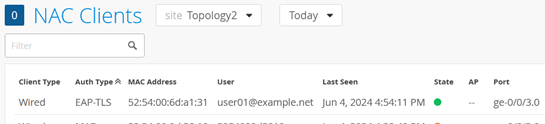
Here is the NAC Client detected
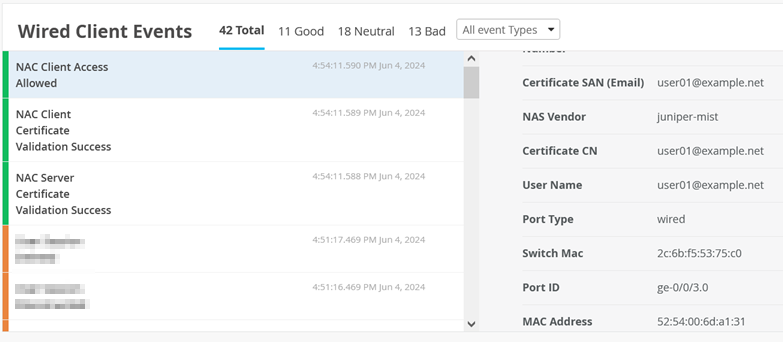
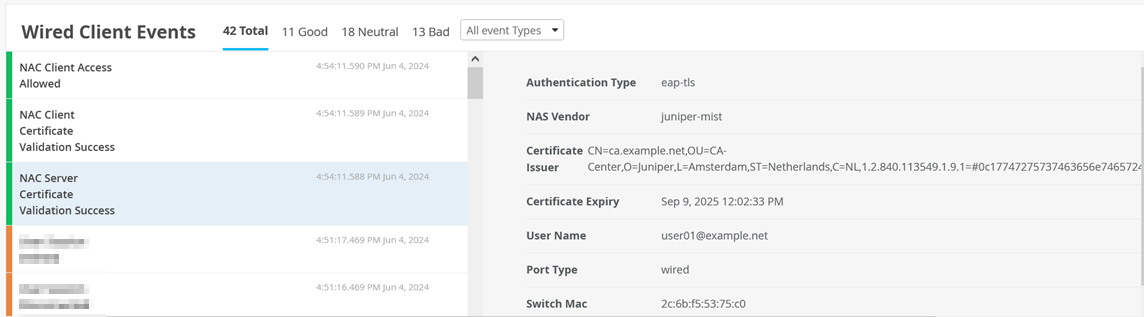
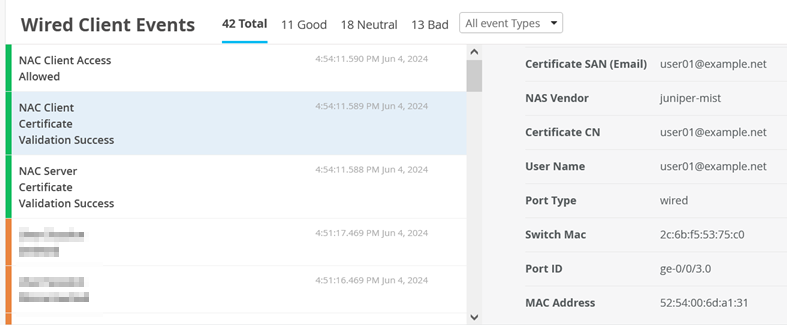
Here are the Events that were generated for this client authentication.
.
.